 Photoshop Tutorial: Align Text
This tutorial will teach you how to align text in your images produced through Photoshop.
What you will need:
1. Photoshop
2. Image
3. Text
Step One:
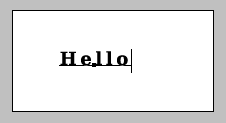
First, type in the text you want on your picture.
Step Two:
Click on the  Rectangular Marquee Tool, located in the Tools box.
Step Three:
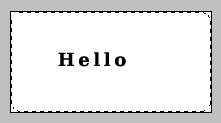
Drag your cursor over your whole image.
Step Four:
Click on the  Move Tool, found in the Tools box.
Step Five:
You will see this in your Options box:
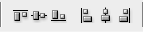
You can choose to Align top edges, Align vertical centers, Align bottom edges, Align left edges, Align horizontal centers, or Align right edges. You can choose as many as you want.
Step Six:
And then you have your final result.
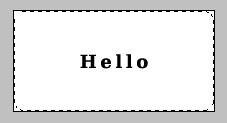
Then you can get rid of the line around your image:
1. Click on the Rectangular Marquee Tool
2. Right click on your picture
3. Click on Deselect
Hope you found this tutorial helpful, and you can help others accomplish this too by sending the link to your friends.
2 Responses
electronic dartboards
March 19th, 2010 at 9:15 pm
1Great posting. Thanks for useful information.
Digital TV Antennas
May 20th, 2010 at 3:15 pm
2Cool post the title name How to Align Text on Images Using Photoshop | KI4KQD BLOGGER is also pretty ingenious keep up the good work, check out my site too thanks.
RSS feed for comments on this post · TrackBack URI
Leave a reply
Subscribe to Feed
Categories
Archives
Links
Meta
Calendar