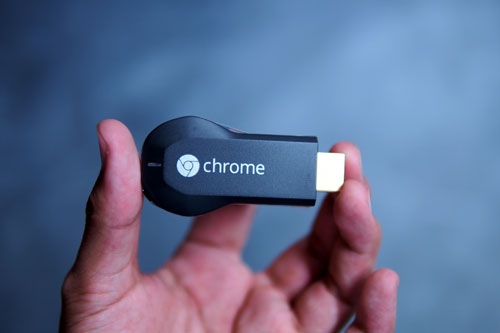
Setting up Chromecast is a simple process for the most part, and the reward is worth it. Just follow along with my guide and you’ll get your Chromecast going. If you have trouble with setup you can leave a comment and I will do what I can to help.
Note: Google will only let you use Chromecast with its Chrome browser, so make sure that you have it installed on your computer before you begin. If not, you can download it from google.com/chrome.
It’s also necessary that your computer has a wireless card or that it is connected to a wireless router interface. If not you can purchase the Edimax EW-7811Un 150 Mbps Wireless 11n Nano Size USB Adapter to make your computer wireless.
Plug It In and Play
To begin, get your Chromecast and plug it into your TV’s HDMI port. If your TV’s HDMI ports are cramped together, then try using the HDMI extension cable provided with the box.
The Chromecast will then need to be powered. Plug in either the AC adapter or the USB cable to the dongle. The USB cable is the easiest route, providing that you have a USB port on your TV.
After you have it all powered up, get your remote and switch the input to the corresponding HDMI port.
If everything goes well, you will see the Chromecast startup screen.
Launch the Setup App
Go to google.com/chromecast/setup to download the setup app for your Mac or PC. Alternatively, you can install the app on your iOS or Android device. Once you have downloaded the app, launch it.
There will be a code and you will need to check to see if it matches with the one on the TV. If so, press on the button that reads “That’s my code”.
You will be prompted to choose a Wi-Fi network and enter the password. Change the name of the Chromecast to whatever you like and continue.
Note: Some users have experienced trouble with getting their Chromecast to connect to the Wi-Fi network successfully. You can see a list of Chromecast supported routers here. If you are still having trouble connecting, visit Google’s troubleshooter.
If all goes well you will see “Ready to cast” on your TV. This is your cue.
Get the Google Cast extension for Chrome
You will need to install the Google Cast extension from the Chrome Web Store.
After it installs you will notice a button for Google Cast in the upper-right corner of your browser.
Casting to Your TV
Now for the moment you’ve been waiting for.
Click on the Google Cast extension that you just installed and cast the tab to your Chromecast. Chrome will cast itself to the big screen.
Some services, like YouTube and Netflix, will have a seperate button on the video you will click to cast to Chromecast. After the video is casted you can still operate in the browser as usual without it effecting the video playback on your TV.
On mobile devices you will find a Chromecast button in supported apps such as YouTube, Netflix, Hulu, Pandora, Crackle, and Google Play.
The Chromecast-supported apps are always growing. For a full updated list go here.
And with that, your dumbfounded TV suddenly became smart.
Image Credit: Flickr
4 Responses
google chromecast
May 17th, 2014 at 9:38 am
1If you desire to increase your knowledge just
keep visiting this site and be updated with the newest news posted here.
FB Gold Digger Review
May 20th, 2014 at 8:44 am
2it’s nice.
Thanks for share !
Sniper 3d assassin hacked
December 10th, 2014 at 1:47 am
3Thanks for ones marvelous posting! I actually enjoyed
reading it, you will be a great author.I will be sure to bookmark your blog and will eventually come back
in the future. I want to encourage you continue your great
posts, have a nice weekend!
iOS Tongbu apk
April 6th, 2018 at 4:17 am
4Fantastic blog! Do you have any recommendations for aspiring writers?
I’m hoping to start my own website soon but I’m a little
lost on everything. Would you advise starting with
a free platform like WordPress or go for a paid option? There are so many options out there that I’m completely
confused .. Any ideas? Thanks!
RSS feed for comments on this post · TrackBack URI
Leave a reply
Subscribe to Feed
Categories
Archives
Links
Meta
Calendar
© 2026 ON THE SQUID is proudly powered by WordPress - BloggingPro theme by: Design Disease. Technical assistance provided by Zach. Thanks for your support!